The below is a fix for the problem if the data logger is showing a green light only.
To resolve this problem, please follow the 6 steps below:
- Turn off your internet router completely.
- Once your router is turned off, go to your Wi-Fi settings on your mobile / cell phone or laptop.
- You should see a Wi-Fi connection called EAP-****. Connect to this end enter the password 12345678.
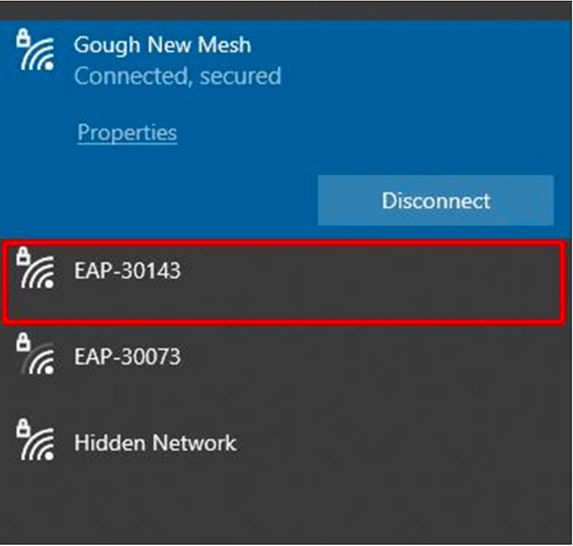
Note. If you do not see the EAP connection with Wi-Fi list, unplug the data logger from the inverter and plug back in again.
- Once you are connected to the data logger EAP connection, open an internet browser and search 10.10.10.
- When the data logger browser opens, scroll down until you see Use the following static IP address.
- Untick Static IP and click Save.
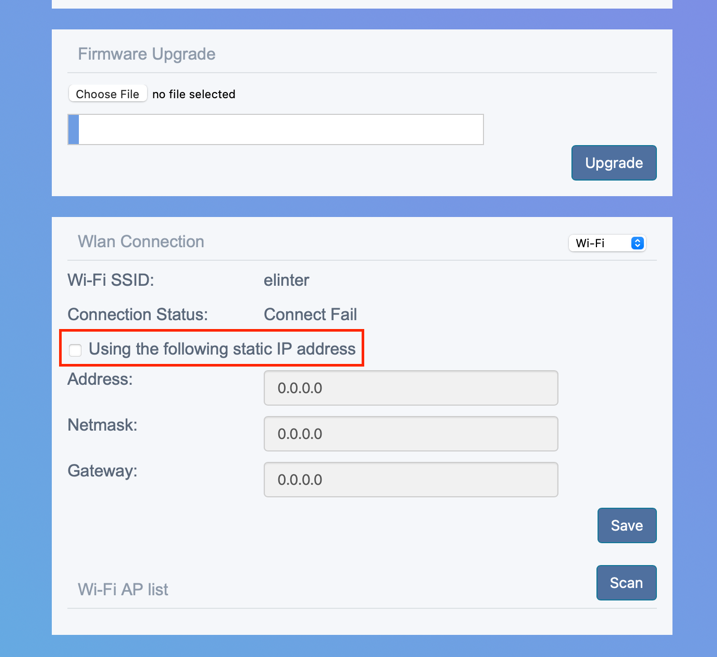
- Turn on your internet router again.
Trouble Shooting:
If the EAP Wi-Fi SSID doesn’t show up when trying the above – Unplug the data logger from the bottom of the inverter and plug back in again. Note: You will need a Philips screwdriver for this
If the data logger is not connected to the internet after following the above steps – Follow step 2-4 again and click scan at the bottom of the page. Once you see your Wi-Fi SSID, click connect and enter your Wi-Fi password.
If the above has not worked, then please ensure ports 80 and 51100 are open. You may also need to split your 5Ghz and 2.4Ghz as the dongle is only compatible with 2.4Ghz and can sometimes class with a dual-band network. If you are unsure on how to do either of the above, then please contact your Internet Service Provider prior to raising a support ticket.
Was this article helpful?
That’s Great!
Thank you for your feedback
Sorry! We couldn't be helpful
Thank you for your feedback
Feedback sent
We appreciate your effort and will try to fix the article